
Adding Data Labels to Your Chart
What are Data Labels in a Chart and How to Set Them
Sometimes it is hard to know the exact values depicted in the chart.
Let’s have a look for example at the following chart:
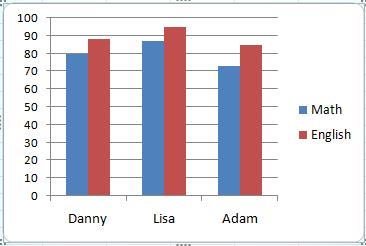
How much did Danny score in English? How much did Lisa score in Math?
In order to know the exact values of the chart’s columns, you can add data labels in the form of small numbers which will appear on the columns.
Let's do it step by step:
- Select the chart by clicking it.
- Choose the “Layout” tab on the ribbon.
- Click the “Data Labels” button.
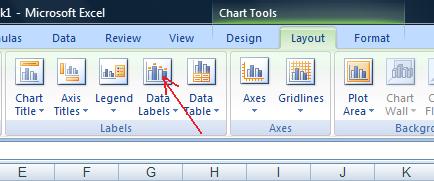
- Choose one of the label’s locations from the menu.
(In the current example I chose "Inside End")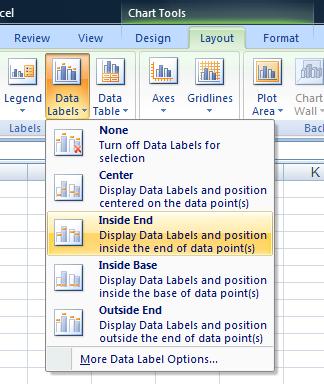
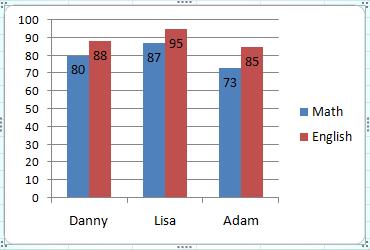
That's it! Now the chart's columns have numbers inside of them indicating their values.
Here is how the chart looks like after we inserted the data labels:
About Data Labels
Excel charts are great for quickly spotting trends and correlations, but to recognize specific data points with ease you should use data labels.
Data labels provide you with a precise value of the data on your chart, so your reader doesn’t need to guess what some exact number is. The user also doesn’t need to waste time looking for that information in your original table.
In the video above, you will notice that without the data labels it might be difficult to say if Danny’s grade in English is that same as Lisa’s grade in Math, and if that grade is 87, 88, or 89.
Using data labels might be unnecessary in some cases when you are simply trying to illustrate a trend or if there is already too much information on the chart. In that case, information that is too specific might distract people from the point you are trying to make.
As with legends, the use of data labels is your own choice and you should think about the goal of your chart before using them. For specific instructions on how to use data labels see the video on the right.